- Start here
- Your computer's exact port specification
- Display check
- Resolution, refresh rate and screen count
- Power check
- Power delivered to the host computer
- Thunderbolt 4
- 40 Gb/s connection bandwidth
Draw a connection map before shopping
Put your computer in the middle of a page and write down everything that needs a cable: monitor, charger, keyboard, external storage, card reader and network connection. Mark what stays at the desk and what travels. This gives each socket a purpose and makes it easier to see whether a small hub or a larger powered dock suits the job.
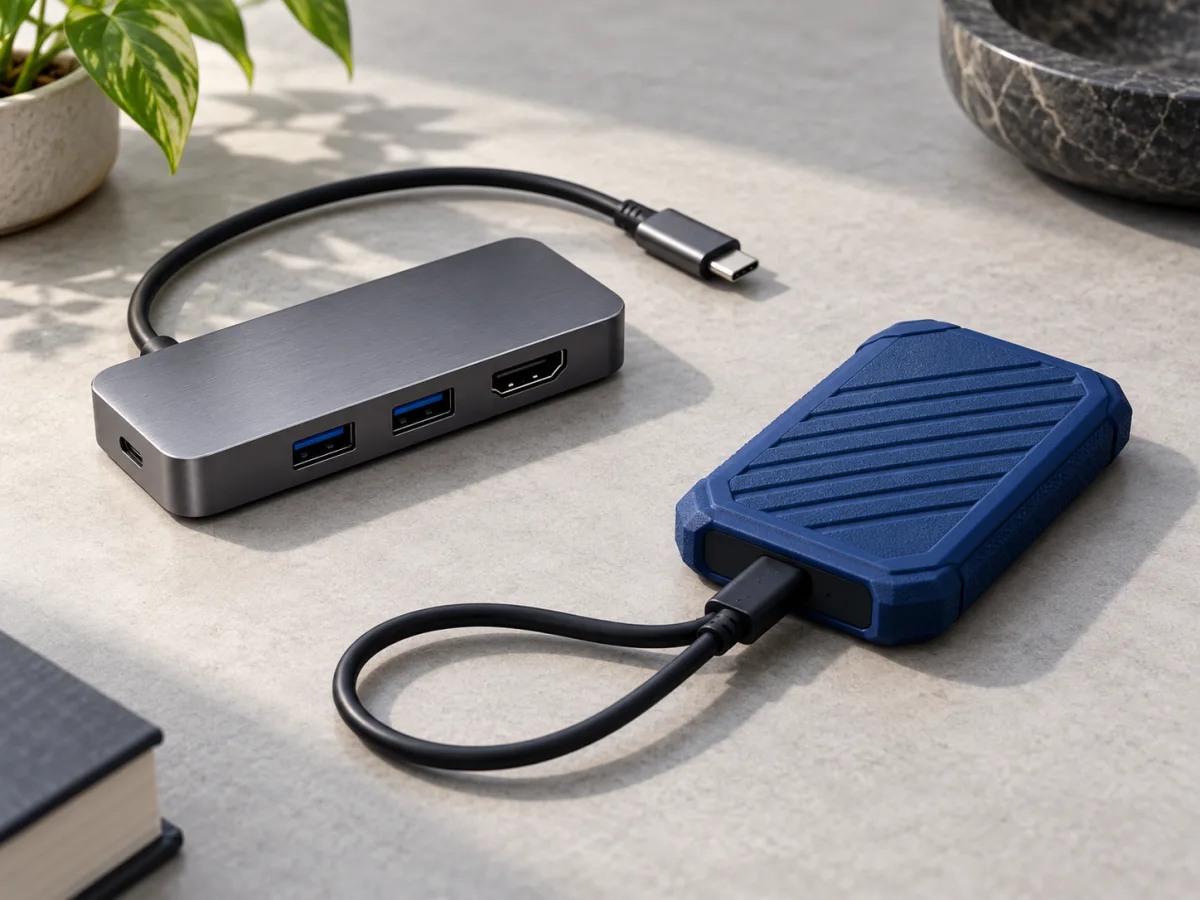
Next, read the exact port specification for your computer. USB-C describes a connector type; it does not by itself guarantee a particular data speed, display feature or charging capability. Note the model and year of the computer when checking compatibility. Two machines with similar-looking sockets may require different buying decisions, so a generic claim that a hub works with laptops is not enough.
Write down the screen requirements in full
For each monitor, record the resolution, refresh rate and input you want to use. Then check how many independent external displays your computer supports and how the dock handles that arrangement. Multiple video sockets are not proof that you can extend your desktop across all of them. Ask for compatibility with the actual computer and operating system in your plan.
VESA explains that DisplayPort Alt Mode can carry video through USB-C, with a suitable computer, accessory and cable. That makes the host port an essential part of the check. When a product advertises 4K output, look for the refresh rate and any conditions for using other ports at the same time. Our advice is to keep a screenshot or copy of the supported arrangement with your purchase records.
Separate charging needs from data needs
Read charging specifications carefully. Identify whether the advertised figure describes power entering the hub or power delivered to the computer. Check whether a suitable charger is included and whether the product's host cable supports the required arrangement. Compare the stated output with your computer manufacturer's guidance. If a specification is unclear, ask the seller a concrete question using your laptop model.
For data, identify the ports you intend to use for storage and the speed of the link back to the computer. Intel specifies 40 Gb/s connection bandwidth for Thunderbolt 4 and explains that this bandwidth is allocated between data and video. It is not a promise of a 40 Gb/s file copy. Match a faster dock to a supported host and a task that benefits from it; a familiar connector is only the beginning of that check.
Choose for the way you connect every day
Imagine arriving at the desk with your bag. Which cable do you reach for, where does the hub sit, and can a stiff monitor cable pull it into an awkward position? Check cable length, port placement and the space around your computer. A compact travel hub and a dock that stays behind the screen solve different practical problems even when their port lists overlap.
When the device arrives, connect your normal setup and check it as a whole. Confirm the intended display mode, open files from external storage and verify charging during a representative task. Keep a note of which cable connects each device so the arrangement is easy to restore later. Our conclusion is to choose clear compatibility and a manageable layout. A well-planned setup should be simple to connect again the next morning.
- Match the exact computer, operating system and monitor arrangement.
- Check power delivered to the computer, not just power input.
- Confirm cable length and port placement suit your desk.
Draw the setup, then choose the hub.
Buy the simplest hub or dock that explicitly supports your computer, display arrangement and power needs. Match the exact model rather than relying on connector shape or socket count. A clear compatibility statement is more useful than a long list of headline features.
Worth considering for
- Laptop owners planning a desk setup
- People connecting a monitor and several accessories
- Buyers choosing between a travel hub and a desktop dock
Before you decide
- USB-C ports can support different functions
- Multiple video sockets do not guarantee multiple independent screens
Sources & notes
Official information consulted for this story. Specifications refer to the named model and generation; check the exact version offered by your retailer.
- USB-IF — USB Type-C language and packaging guidance
- VESA — DisplayPort over USB-C
- Intel — Thunderbolt 4 and USB-C explained
Published October 24, 2026. No affiliate links appear in this story.