- First check
- Your computer's port speed
- USB 3.2 Gen 1
- 5 Gb/s
- USB 3.2 Gen 2
- 10 Gb/s
- USB 3.2 Gen 2x2
- 20 Gb/s
Start with files, not megabytes per second
Decide what the drive will hold before choosing a speed tier. A working video project, a photo collection and a weekly document copy have different storage patterns. Make a rough inventory of the files you need now, the projects you expect to add and the material you will archive elsewhere. Leave yourself useful room to grow without assuming that every file must travel with you.
Also decide whether this is a working drive, a transport drive or a backup destination. One device can take more than one role, but writing the roles down makes the compromises visible. A transport drive should be easy to identify and pack. A backup drive needs a repeatable copying routine. For either role, an organised folder structure is more helpful than an impressive specification you rarely use.
Match the whole connection chain
USB-IF defines USB 3.2 Gen 1 at 5 Gb/s, Gen 2 at 10 Gb/s and Gen 2x2 at 20 Gb/s. These are interface data rates, not guaranteed file-copy results. Read the drive specification alongside the computer's port specification and the supplied cable's capability. The USB-C shape alone does not identify which performance level a connection supports.
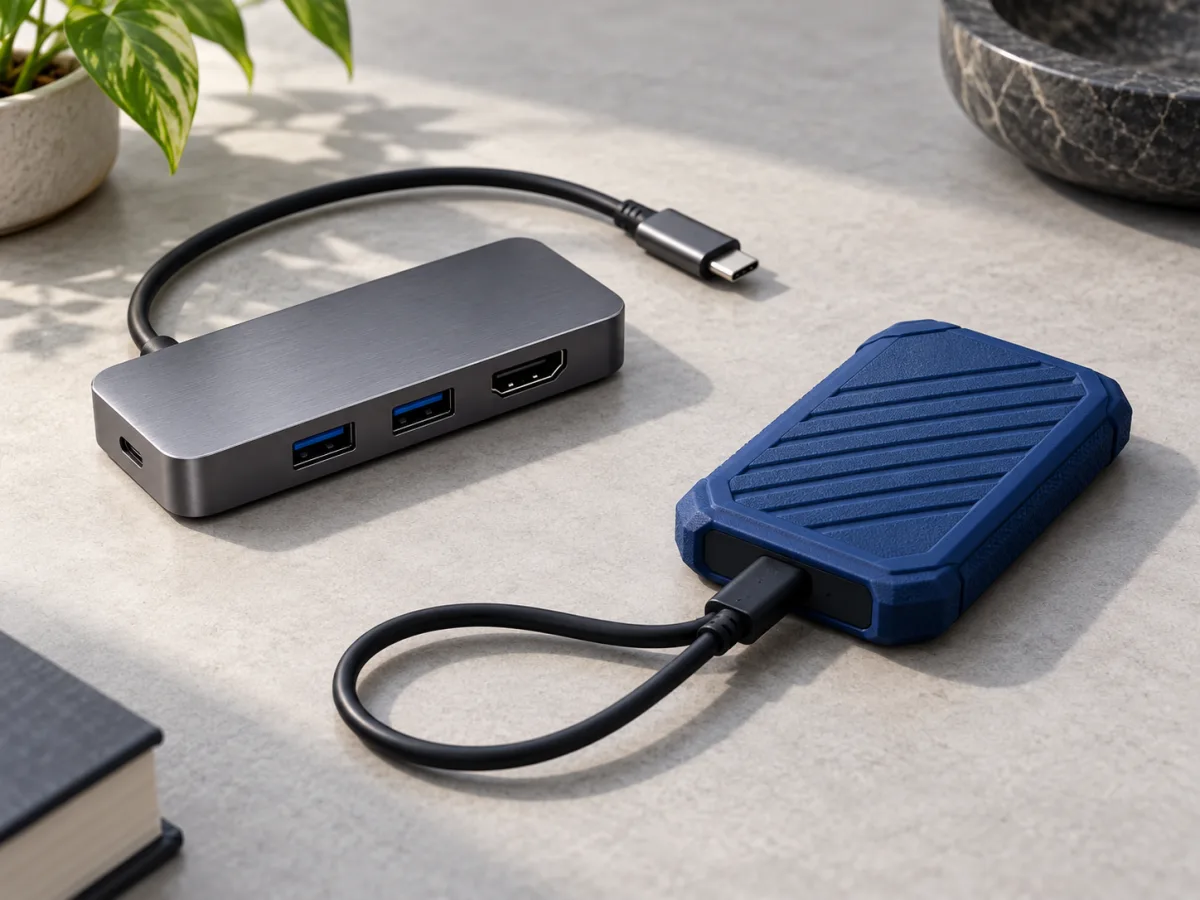
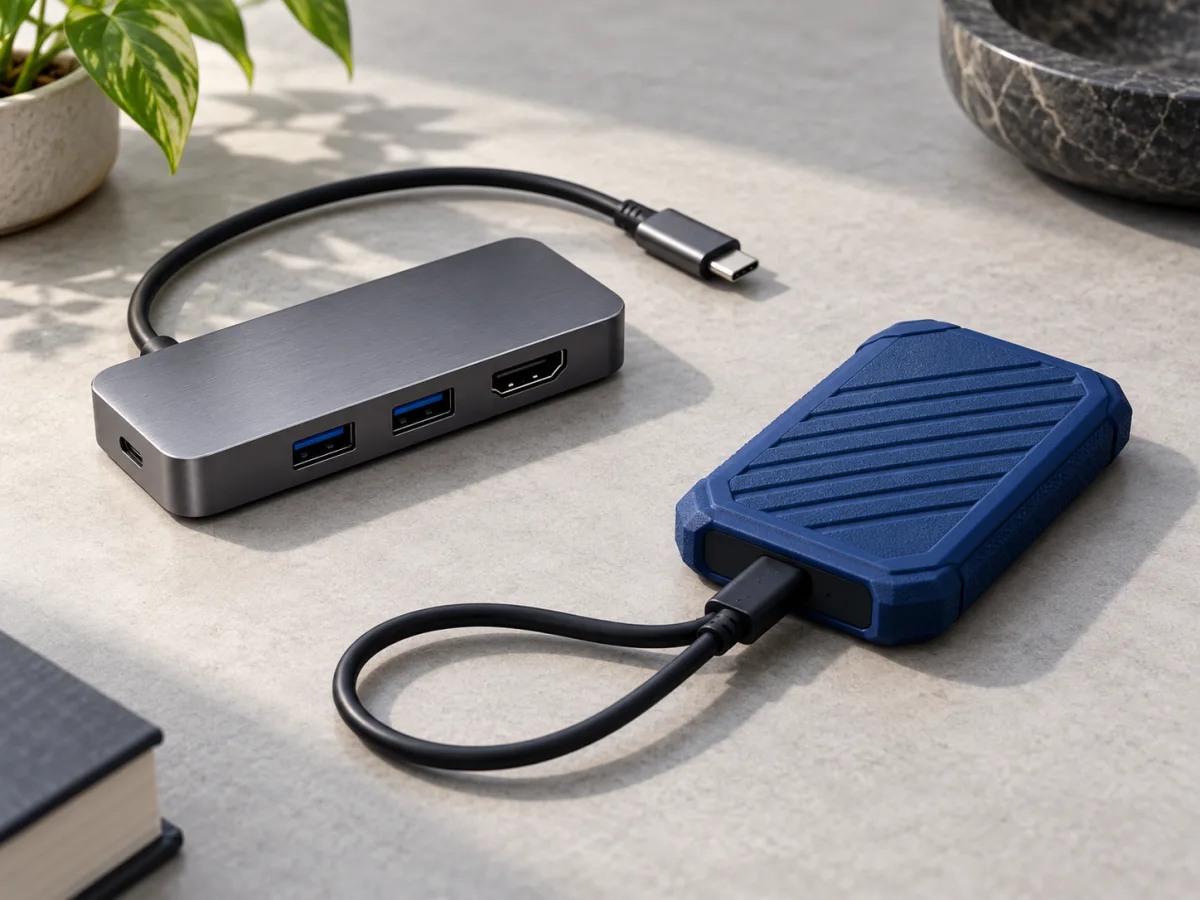
Make a small connection map: computer port, cable, any hub, then SSD. Check each item rather than assuming the newest-sounding device sets the pace. If you use the drive on two computers, plan around both. Our advice is to spend on a higher speed tier only when you can identify a regular task and a compatible setup that would benefit. Otherwise, capacity and a clear warranty may be more useful buying priorities.
Read a speed claim as a starting point
Samsung's T7 Shield provides a concrete example: its official specification quotes sequential read speeds up to 1,050 MB/s and write speeds up to 1,000 MB/s over USB 3.2 Gen 2. Those are manufacturer figures for that product. They are not a benchmark from this site, and they should not be read as a prediction for copying your particular folder.
Before comparing products, describe the transfer you actually care about. Is it one large recording, a folder of mixed project files or a whole library? Ask whether a review's test resembles that workload and uses an interface your computer supports. If you can evaluate the drive within a return period, copy representative files and check that they open correctly. Keep your originals throughout that check rather than moving the only copy onto an unfamiliar device.
Plan the boring details before the first trip
Confirm compatibility with every computer, tablet or camera you intend to connect. Check the manufacturer's guidance on file systems, software and power requirements for that exact combination. A drive that works in one setup may need preparation for another. Label the device clearly and decide where its cable will live; a portable accessory is more useful when its required parts stay together.
Finally, write down where the second copy lives and how often it gets updated. Practise opening several files from that copy. Consider what would happen if the portable drive were lost on the way home. Our conclusion is straightforward: choose enough capacity, verify the connection and make copying routine. A faster drive can save time, but an orderly storage plan gives that speed a useful job.
- Check computer, hub, cable and SSD compatibility together.
- Compare claims against the kind of files you use.
- Keep and periodically open a second copy of important work.
Buy the capacity and connection your work needs.
Choose a portable SSD by checking the whole path from computer to cable to drive. Pay for faster storage when your equipment and regular workload can use it. Whatever you choose, keep another copy of irreplaceable files and check that you can actually open it.
Worth considering for
- People moving projects between workspaces
- Photographers planning portable storage
- Anyone comparing confusing USB speed labels
Before you decide
- A peak speed is not a promise for every transfer
- A single portable drive should not hold the only copy
Sources & notes
Official information consulted for this story. Specifications refer to the named model and generation; check the exact version offered by your retailer.
- USB-IF — USB 3.2 specification and data rates
- USB-IF — USB Type-C language and packaging guidance
- Samsung — Portable SSD T7 Shield official specifications
Published October 24, 2026. No affiliate links appear in this story.